Pages Overview
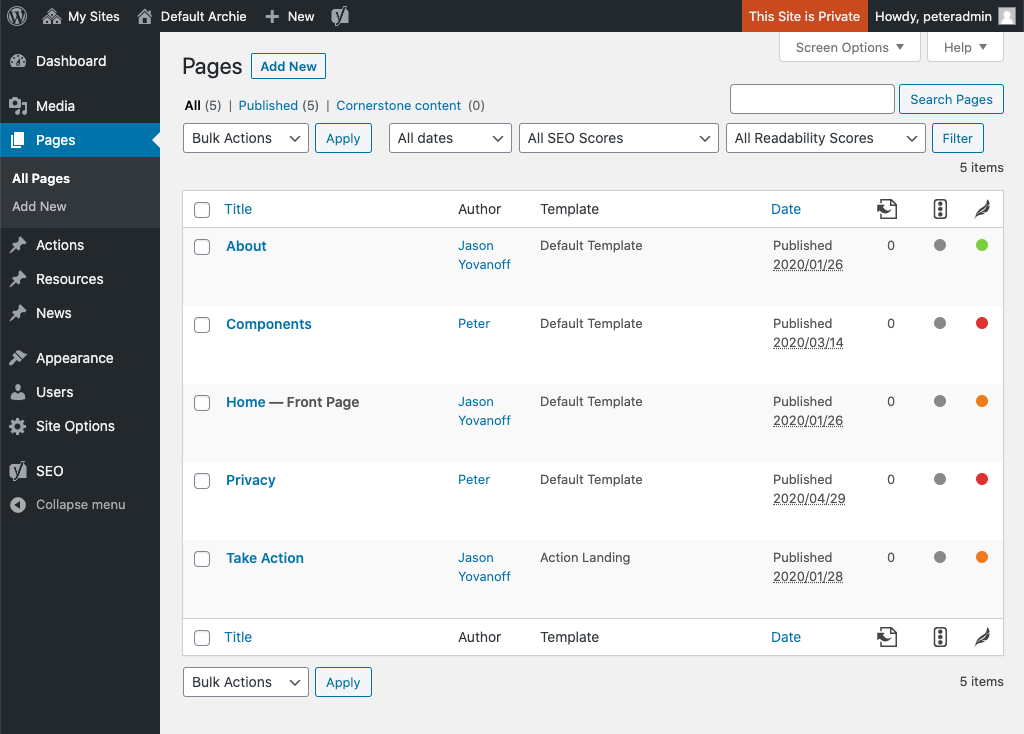
The Pages section contains all the static pages of your site. From here, you can create new pages, remove pages or edit existing pages.
Managing Pages
From the main Pages screen, you can:
- Create a new page by selecting “Add New” near the page header or from the main navigation menu.
- Remove an existing page by hovering over the page title which will display a quick menu with the option to “trash” the page.
- Make a copy of a page by hovering over the page title which will display a quick menu with the option to “Clone” (creates a copy) or “New Draft” (creates a copy and places you in the pages edit mode).
Working with Pages
To edit a page, select the title of the page you would like to edit from the list of pages.
All the pages have available the same options and features except for the Home page. This page contains a few extra features unique to the home page experience.
Page Title
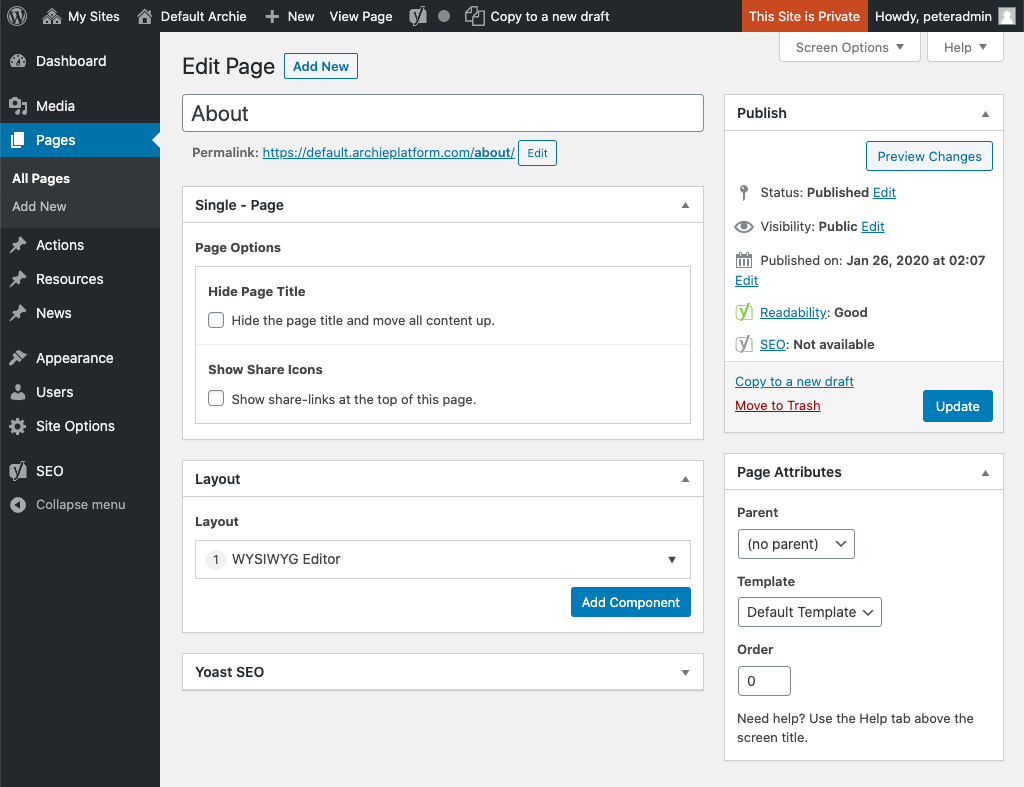
Provide a name for your page or edit and existing name. When adding a page title for the first time, the permalink will automatically be generated. The permalink is the actual URL that will be used to access the page.
Note: changing the name does not automatically change the permalink. To edit the permalink, click “Edit” and update to the desired URL.
Page Options
Within the page options, you can:
- Hide Page Title. This option removes the page title from the page. This can be useful if you would like to use a component as a page header.
- Show Share Icons: By default, social share icons only appear on individual news article and resources page. Selecting this option places them at the top of your page.
Layout
The layout section contains all the components on the page. Components are the core building block of a static page on the Archie Platform. Learn more about components.